
TSV File Manifest Download
Manifest downloads are available for all of the datasets listed in the AnVIL Data Explorer, including both open-access and managed-access datasets. A tab-separated-value file (.tsv) is generated based on the data selected.
The downloaded manifest contains a number of columns. Depending on how the data will be accessed and used, some of the key columns are:
- dataset.title, which contains the name of the dataset that the file belongs to.
- A manifest can contain files from multiple datasets, depending on how the file is generated.
- datasets.consent_group and datasets.data_use_permission, which contain the dataset's consent and use codes.
- files.file_size, which contains the file size in bytes.
- files.name, which contains the file name.
- files.drs_url, which contains the DRS URL for use within the Terra environment.
- files.azul_url, which is a URL that allows HTTP access to the individual file.
- Files in open-access datasets are available via this link.
- At this time, AnVIL requires requester-pays for managed-access datasets, so the files are not accessible through this URL.
- files.azul_mirror_url, which contains the URI to the Amazon Web Services S3 bucket for that file.
- Please note that the file name in the bucket is a hash to reduce storage requirements in case there is file duplication.
- This field will be blank if the file is not present through the AWS Open Data Sponsorship Program.
Example
Downloading The Manifest For A Single Dataset
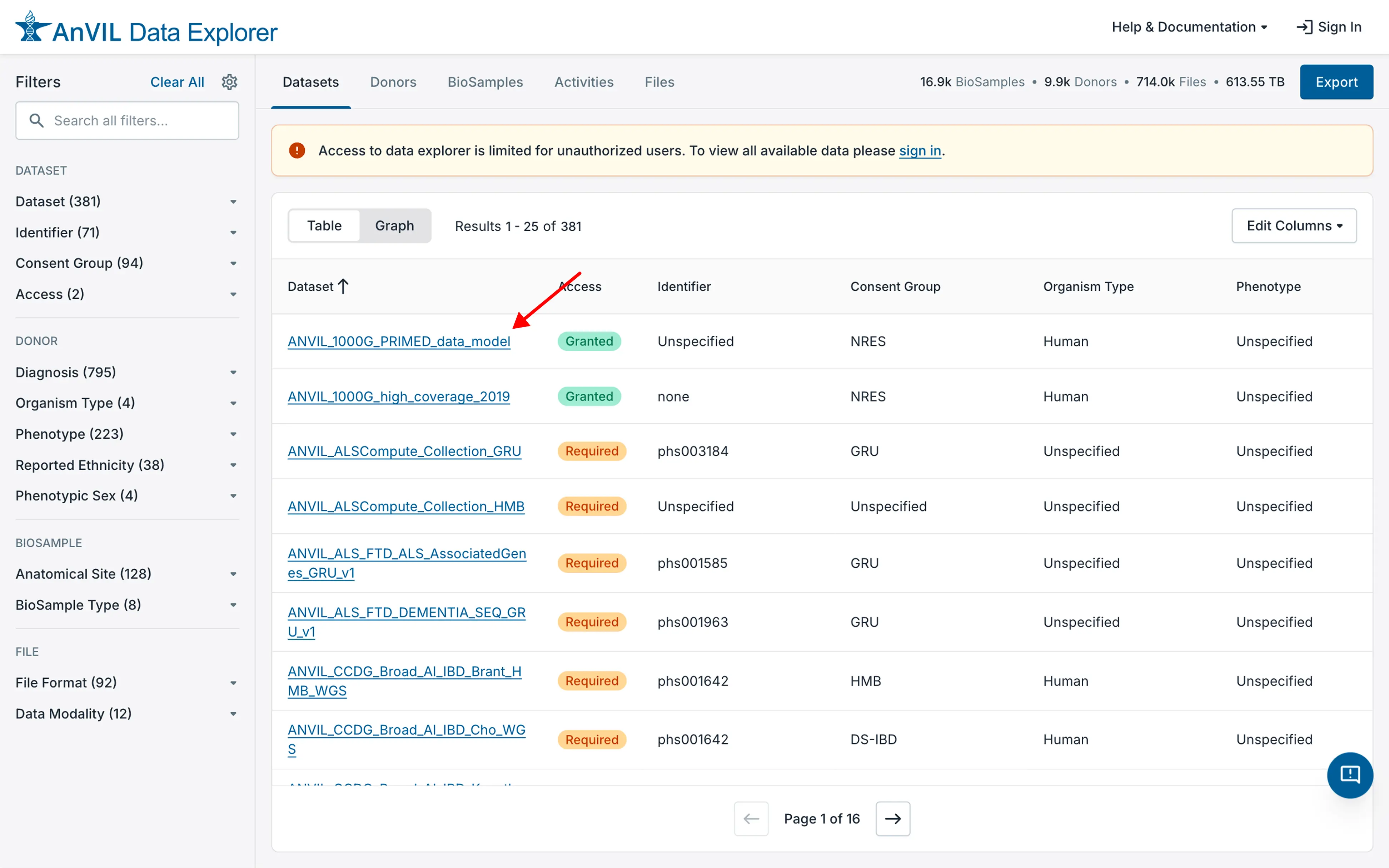
- Visit the dataset of interest by clicking on the dataset name in the Data Explorer.
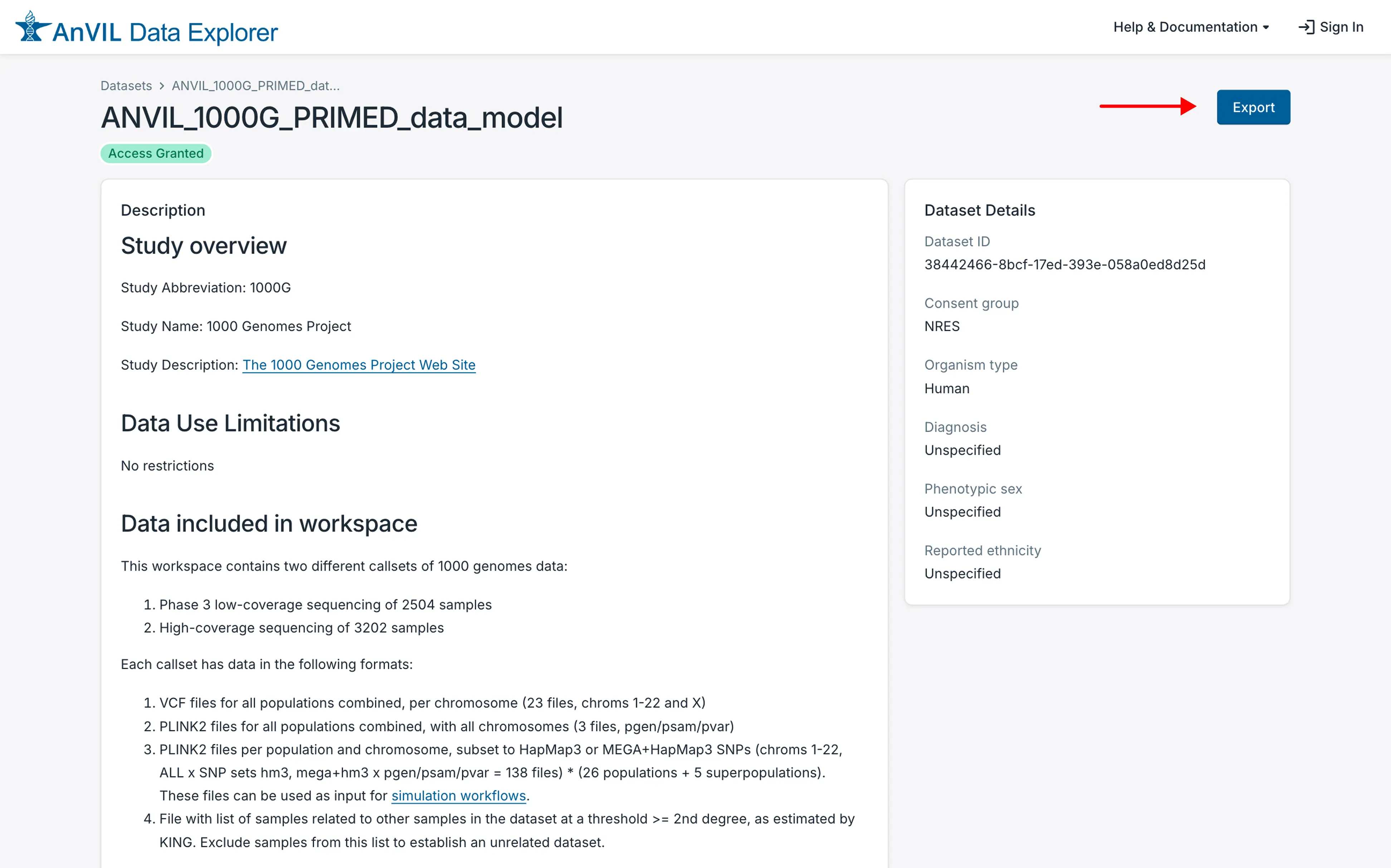
- On the dataset description page, click on the "Export" button in the upper right-hand corner of that page.
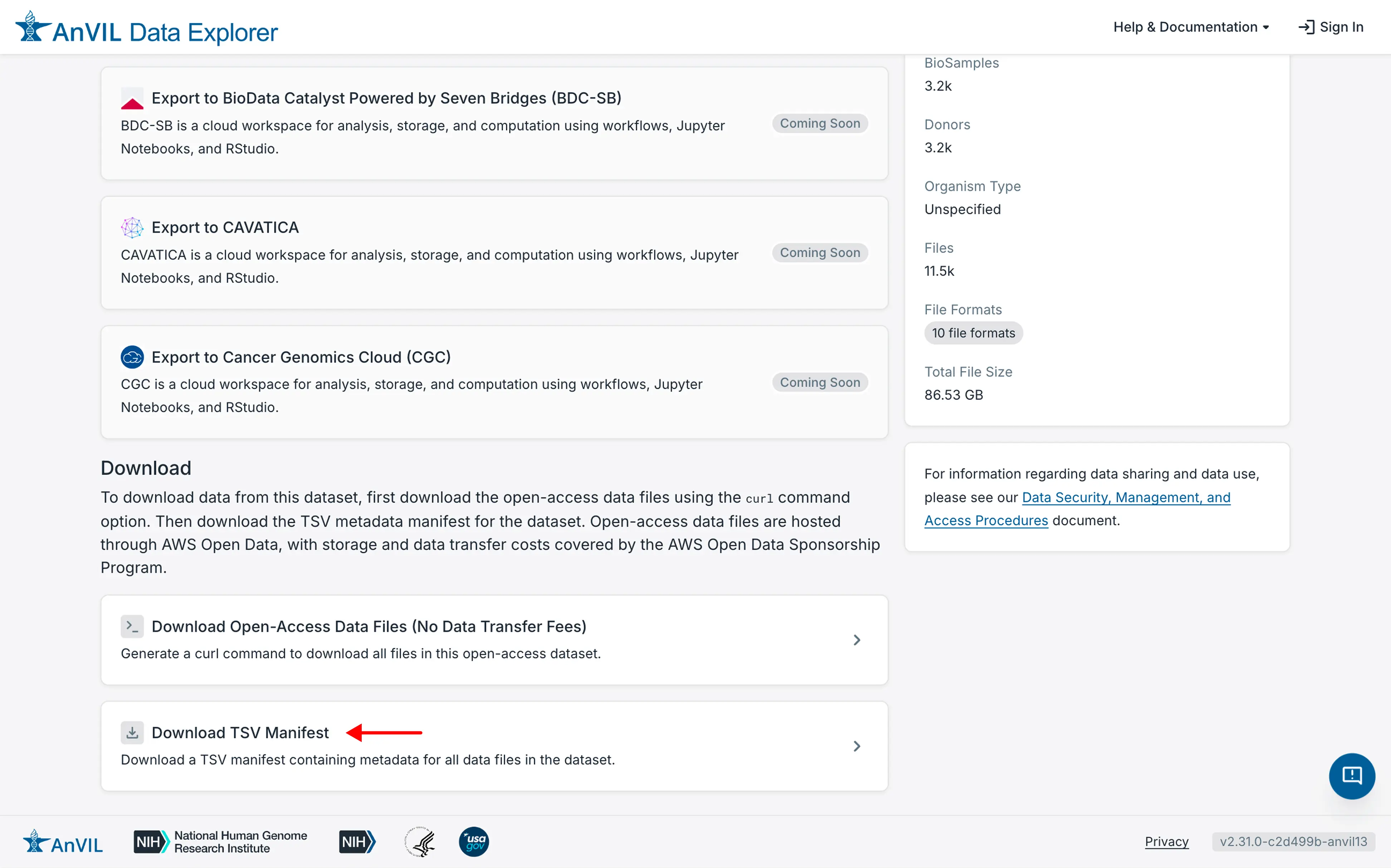
- Then click on "Download TSV Manifest" in the "Download" section near the bottom of the page.
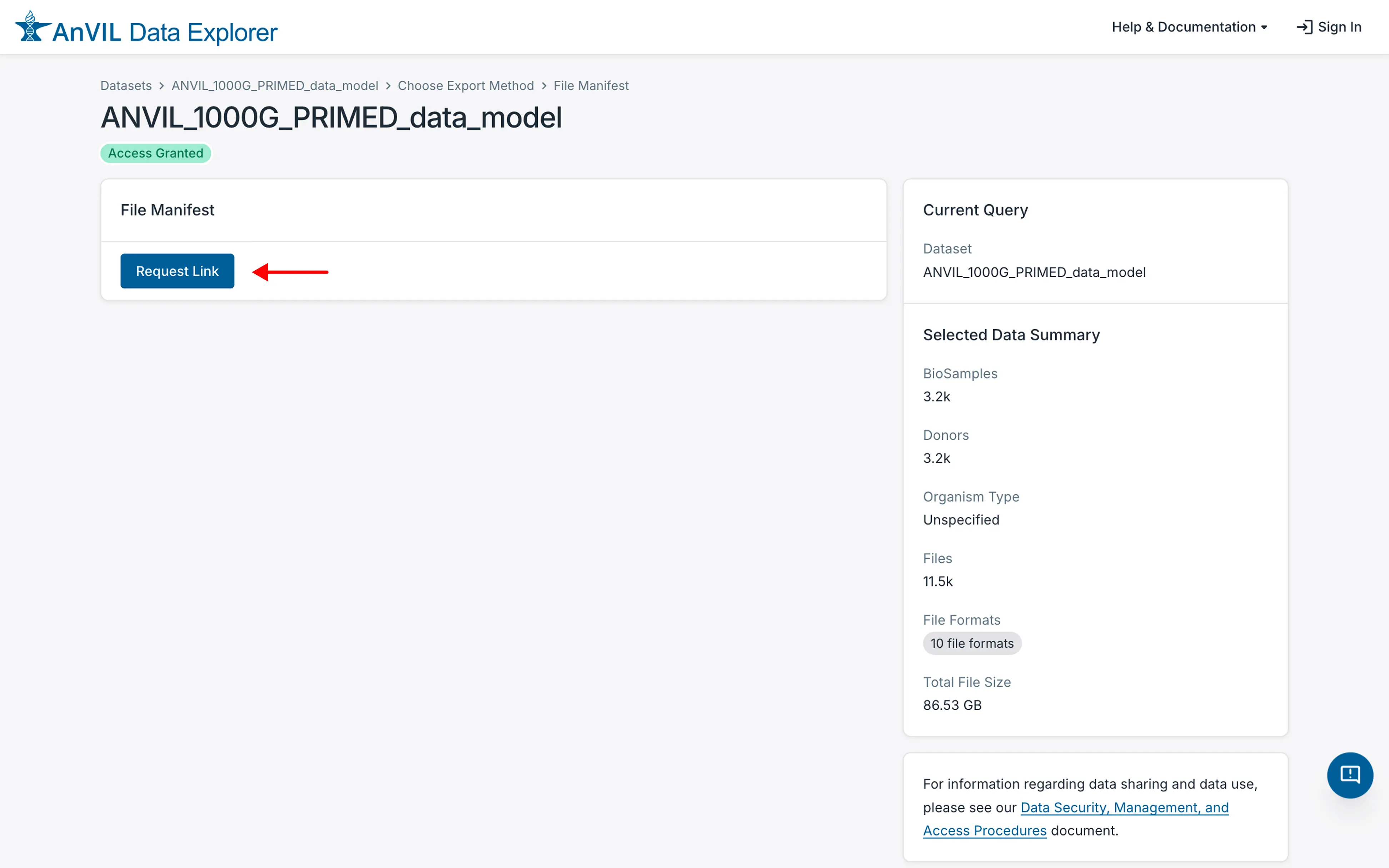
- This will display a screen to request the generation of the manifest. Click on the "Request Link" button.
- Once the manifest is generated, you can either download it directly by clicking the download icon or copy its URL by clicking the copy icon.
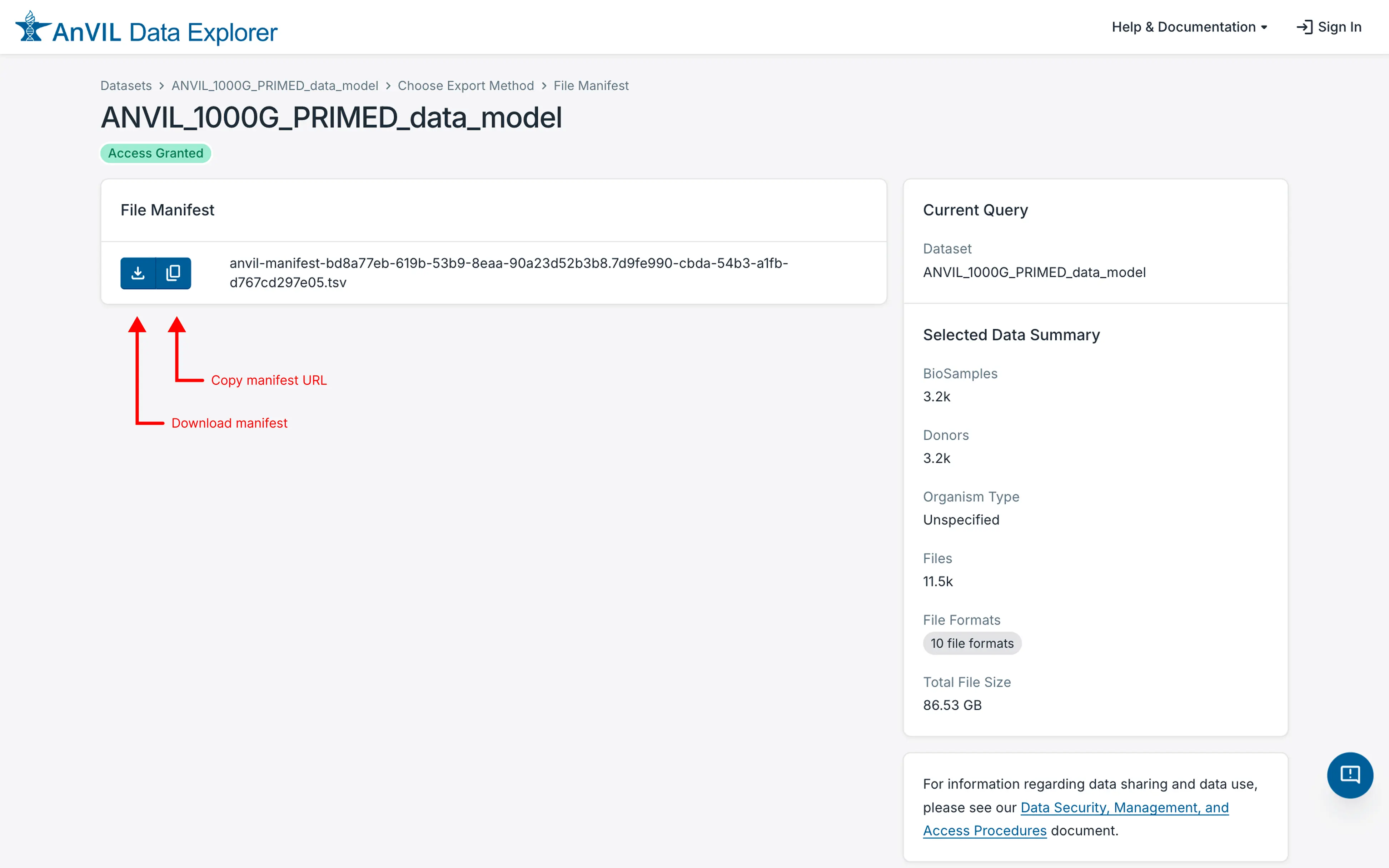
The manifest can be viewed with any utilities that can import tab-separated-value files. It can additionally be processed with scripts depending on the need.
Downloading A Manifest For Multiple Datasets
Downloading files from multiple datasets works the same way as downloading from a single dataset, except for how you select the datasets.
In this case, on the Data Explorer's main page, use the faceted search feature in the right-hand column to select the datasets of interest and then click on the "Export" button on the top right of the page.
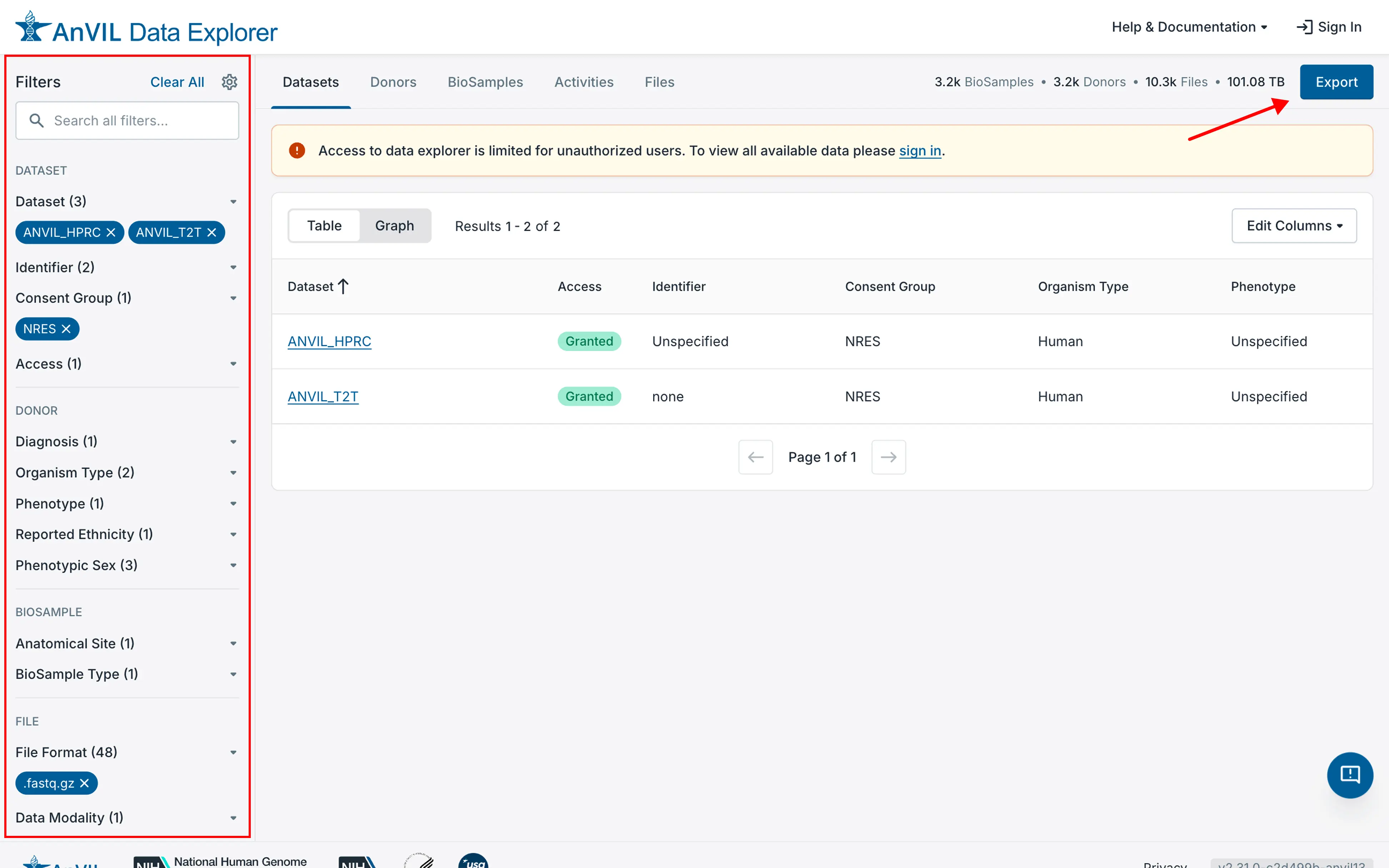
From this point on, the interface is the same as the single dataset download above. Continue with Step 3 above.